How to Use SharePoint for Document Management: UK SMB Guide
You’re probably dealing with one of two problems right now. Either your shared drive has turned into a maze of folders called “Final”, “Final v2”, and “Use This One”, or you’ve already got Microsoft 365 and know SharePoint should solve it, but you’re not sure how to set it up without creating a newer, shinier mess.
That’s the point where most UK businesses need practical direction, not another generic Microsoft overview. If you want to understand how to use SharePoint for document management, the answer isn’t “upload your files and hope search sorts it out”. A reliable SharePoint document management system starts with structure, permissions, metadata, and governance that match how your business works.
For firms across Lincoln, Nottingham, Leicester, Newark, Scunthorpe and Grimsby, the same pattern crops up repeatedly. Teams want something simple. Compliance needs control. Management wants visibility. SharePoint can deliver all three, but only if you build it as a proper document management system rather than a cloud version of a file server.
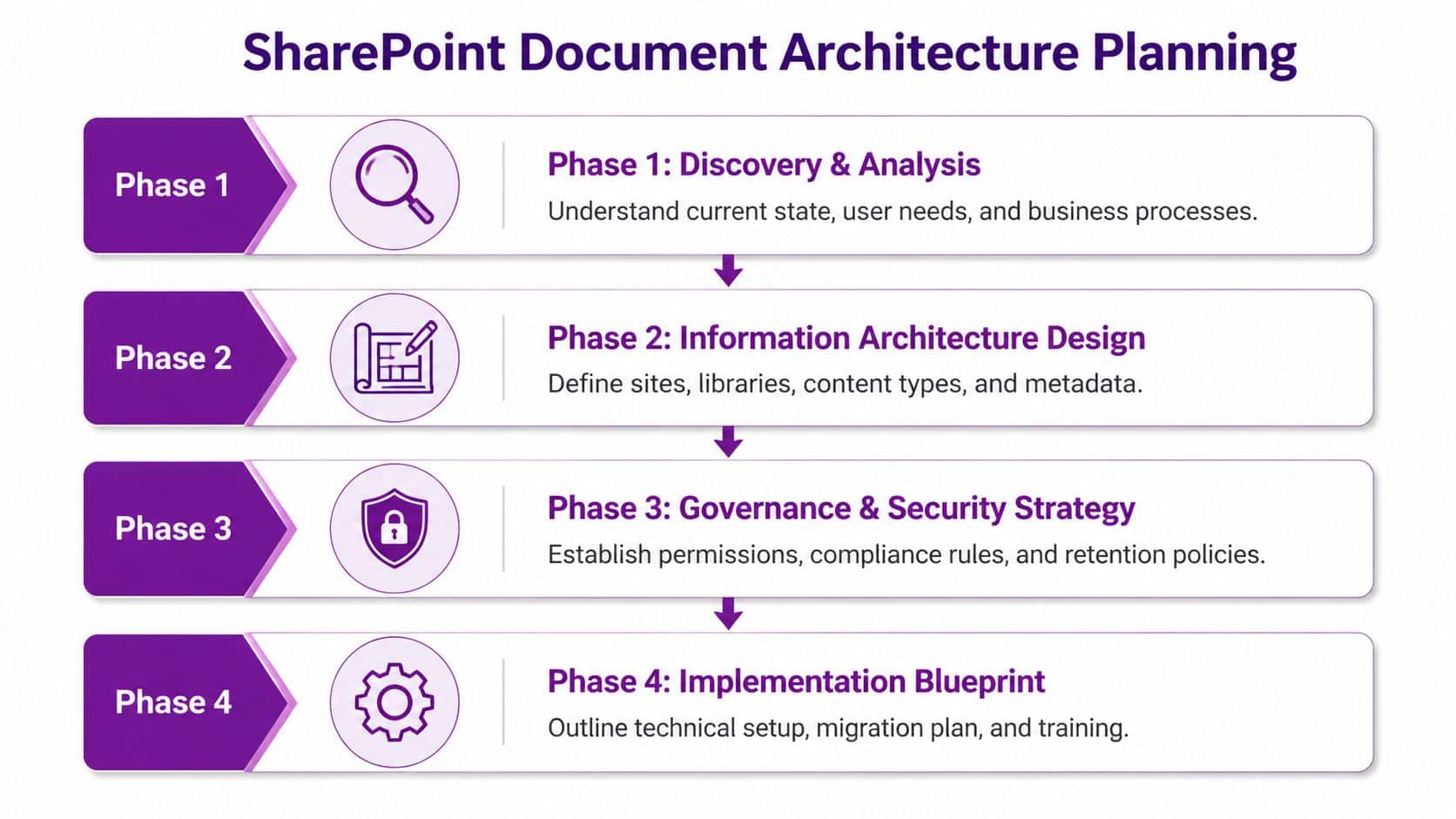
Planning Your SharePoint Document Architecture
The biggest mistake I see is businesses opening SharePoint and starting with folders. That feels familiar, so it feels safe. It usually ends with users recreating the same clutter they had on the old server, only now it’s online.
Start with the business, not the technology. Think about who creates documents, who reviews them, who approves them, who needs read-only access, and what has to be retained for compliance. If your head office is in Lincoln and you’ve got operational teams in Nottingham and Leicester, your structure needs to reflect how those people work together, not just your org chart on paper.
Choose the right site type first
SharePoint gives you different building blocks. Picking the wrong one at the start causes confusion later.
- Team Sites work well for active collaboration. Use them where staff create, edit, and review documents together.
- Communication Sites suit information that’s mainly published outward to the business, such as policies, announcements, or board updates.
- Hub Sites help tie related sites together under one navigation and search experience when your environment starts to grow.
A straightforward model for a mid-sized business might look like this:
NeedBest fit in SharePointTypical useDepartment collaborationTeam SiteHR, Finance, OperationsCompany-wide publishingCommunication SitePolicies, news, intranetGrouped business areaHub SiteAll people-related or project-related sites
That structure gives you room to grow without forcing everything into one giant site.
Define your content buckets
Before you create a single library, list the main categories of business content. Most organisations have some version of these:
- Policies and procedures
- Contracts and supplier documents
- HR records
- Project documents
- Finance and compliance files
- Sales and customer-facing material
These are your content buckets. In SharePoint, that usually means separate document libraries, and sometimes separate sites as well.
Because metadata applies at the library level, mixing contracts, HR files and SOPs in one place leads to either too many irrelevant columns or not enough control. For a practical SharePoint DMS, separate libraries for distinct document types are cleaner and easier to govern.
Practical rule: if two document types have different owners, review cycles, or retention needs, they usually shouldn’t live in the same library.
Map business needs to structure
A good architecture answers simple operational questions quickly.
- Where do draft procedures live?
- Where do approved policies live?
- Who can edit supplier contracts?
- Who can read audit evidence but not change it?
- Which documents must be reviewed on a schedule?
For UK firms, that last point matters more than many guides admit. If you’ve got quality, HR, finance, or regulated charity processes, you need a structure that supports retention, approvals, and audit trails from day one.
One practical way to frame it is to split content into three states:
- Working documents
- Controlled documents
- Records
Working documents need collaboration. Controlled documents need approval and version control. Records need retention and restricted change. SharePoint can support all three, but they shouldn’t all be treated the same way.
Don’t confuse SharePoint with OneDrive
This catches out a lot of businesses during first rollout. OneDrive is for an individual’s work files. SharePoint is for team and organisational content. If you let staff keep departmental documents in personal OneDrive libraries, ownership and continuity become a problem the moment someone leaves or changes role.
If your team needs help understanding where each tool fits, this guide on SharePoint vs OneDrive for business use is worth reading before rollout.
Keep the architecture flat
Deep folder trees look organised until nobody can find anything. SharePoint search and filtering work far better when the structure is flatter and the metadata is stronger.
A simple architecture usually works best:
- Site for department or function
- Library for document class
- Metadata for sorting, filtering, ownership and status
That gives users fewer places to browse and more ways to find what they need.
A tidy SharePoint environment isn’t the one with the most folders. It’s the one where staff can find the right document without asking a colleague where it lives.
Building Your Document Libraries and Metadata
A good SharePoint library answers a simple question fast. What is this document, who owns it, and what needs to happen to it next?
That is why library design matters so much in a first rollout. For many UK SMBs, especially firms managing policies, supplier paperwork, HR files, and client contracts across more than one office, the primary benefit is not extra storage. It is getting documents classified properly so staff can find them, filter them, and trigger the right process without digging through old folder trees.

Build libraries around document purpose
Libraries should reflect how the business uses documents, not how the old file server looked.
For a UK mid-sized business, separate libraries for SOPs, policies, and contracts usually make sense because each one has different owners, review rules, and compliance needs. A contracts library often needs renewal dates and approval status. A policies library usually needs review cycles and effective dates. Putting all of that into one catch-all library makes search noisy and governance harder later.
A practical setup for controlled documents often includes columns such as:
- Owner using a Person field
- Author using a Person field
- Status using a Choice field like Draft, Approved, Archived
- Expiration Date using a Date field
- Department using a Choice field such as Lincoln, Nottingham, Leicester
- Review Cycle using a Number field
- Compliance Tag using a Yes/No field
Keep the choices controlled. If users can type anything they like into key fields, reporting and automation become unreliable very quickly.
A worked example for a Contracts library
A Contracts library is a good example because it has commercial value and clear operational deadlines.
Create the library first. Then add metadata that helps the business answer day-to-day questions without opening every file.
ColumnTypeWhy it mattersContract TypeChoiceDistinguishes client, supplier, partnerOwnerPersonMakes accountability obviousStatusChoiceShows Draft, Under Review, Approved, ArchivedExpiration DateDateSupports renewal and reviewDepartmentChoiceHelps route by business unitCompliance TagYes/NoFlags contracts with added controls
Once that is in place, create views such as:
- Expiring soon
- Awaiting approval
- Approved contracts
- Contracts by department
That structure works well for businesses with finance in one office, sales in another, and directors who want a quick answer on renewal exposure. It also gives you a clean base for Power Automate later, such as reminders 90 days before expiry or approval requests when status changes to Under Review.
Use content types where consistency matters
Content types help standardise how specific document types are created and tagged. They are worth using where consistency matters and where missing metadata causes real problems.
For example, an HR Policy content type could require:
- owner
- policy status
- review cycle
- effective date
- department
- compliance tag
A Supplier Contract content type might need a different set of required fields. That stops staff uploading important files with no expiry date, no owner, and no status. Once that happens, search becomes weaker, reminders get missed, and retention decisions become harder to defend.
For businesses still getting used to the platform, this overview of what SharePoint Online does in Microsoft 365 explains the building blocks behind libraries, metadata, permissions, and document control.
Why metadata beats folder sprawl
Metadata works better because staff rarely search for documents by remembering the exact path. They search by context. Contract owned by Sarah. Policy due for review in June. Approved supplier agreement for the Nottingham office.
That is the practical reason F1Group usually keeps folder use light in SMB deployments. A few folders for broad separation can be fine. Heavy nesting usually creates two problems. Users file documents inconsistently, and important attributes stay hidden in the folder path instead of being available for filtering, search, retention labels, or workflow conditions.
For UK businesses dealing with GDPR, ISO-aligned processes, or customer audit requests, that matters. If review date, owner, approval status, and department are stored as metadata, they can be surfaced in views, used in Power Automate, and checked during governance reviews. If the same information only exists in a folder name, SharePoint cannot do much with it.
Set up views that users will actually use
A library can be designed well and still fail if the default view is cluttered.
Build views around real tasks:
- Documents due for review this month
- Approved policies only
- Drafts owned by me
- Contracts expiring soon
- Leicester department documents
Pin the columns people check first. Hide the ones they do not need every day. A policy owner might care about status and next review date. A director may only want approved documents and effective dates. Good views cut friction and reduce the temptation to export everything back into Excel.
A useful demonstration of the wider approach is below.
What usually goes wrong
Most problems come from making the setup too clever too early.
- Too many columns. Staff skip metadata if every upload feels like admin.
- Wrong column types. Free-text fields create messy values where Choice fields would keep data consistent.
- Libraries that mix unrelated content. Search results become noisy and views stop being useful.
- Fields nobody maintains. If no one owns the data quality, reports and workflows drift out of date.
- Folder-first thinking. Documents get buried instead of classified.
Start with a small number of fields that support a real business outcome. Finding documents faster, flagging reviews, identifying approved versions, or separating controlled content from general working files. That is usually enough for a first phase, and it is far more cost-effective than building an elaborate taxonomy that staff never adopt.
Mastering Versioning Permissions and Security
A finance manager updates a supplier contract. Someone else edits the same file later that afternoon. By Friday, nobody is certain which version was approved, who changed the payment terms, or whether the external accountant can still open the folder.
That is the point where a SharePoint DMS stops being helpful and starts creating risk.

Versioning, permissions and security need setting properly at the start. For UK SMBs, that is not only about tidy administration. It affects audit trails, data protection, staff accountability and the amount of time wasted fixing avoidable access problems.
Why versioning should be switched on early
Version history gives you a record of what changed, who changed it and when. For policies, procedures, contracts and controlled documents, that record matters.
A practical setup is to enable versioning from day one and set retention limits that fit the document type. Controlled documents usually need a clearer approval history than general working files. Draft-heavy collaboration libraries may need more versions kept for a period, while routine team content can be lighter.
Minor versions also have a place, but only where the business will use them. If nobody understands draft versus published status, keep the setup simpler. I usually advise clients across Nottingham, Leicester and Derby to reserve the more controlled version settings for documents that carry operational, legal or compliance weight.
When check-in and check-out still make sense
Check-out is useful in the right library. It is irritating in the wrong one.
Use it for content that needs deliberate control before changes are published, such as:
- controlled policies
- approved SOPs
- sensitive finance documents
- board papers
- records under formal review
Leave it off for live collaboration files where teams need to co-author in Word or work inside Teams without friction.
A good rule is simple. If a document needs sign-off, scheduled review or a clear approval trail, treat it as controlled content. If it is a working draft for day-to-day collaboration, avoid adding barriers people will work around.
Build permissions around groups, not people
One-off permissions feel convenient when somebody needs access quickly. Six months later, nobody remembers why they were added, who approved it, or what else they can now see.
Group-based access is easier to run and easier to explain during an audit.
GroupPermission levelTypical useAuditorsReadEvidence review without editsDepartment managersEditDay-to-day updatesSite ownersFull controlAdministration onlyExternal reviewersLimited access where neededSpecific controlled collaboration
This model suits most smaller businesses because it keeps the structure readable. It also reduces the support burden. When a member of staff changes role, you update group membership instead of hunting through folders and files.
Least privilege scales better
Least privilege means giving people access to the content they need for their job, and no more.
That matters in practice. HR files should not sit in the same permission structure as marketing collateral. Board papers should not inherit access from a general team site. Temporary staff and contractors should not keep access after the project ends because nobody reviewed the membership.
Use these rules:
- grant access to groups, not individual users
- break inheritance sparingly
- keep sensitive content in separate libraries or separate sites
- review permissions on a schedule
- avoid file-level permissions unless there is a clear short-term reason
- remove access as part of offboarding and role changes
For many F1Group clients, substantial improvement originates here. The technology is already there. The gain comes from cutting exceptions and agreeing who owns access decisions.
A practical security model for UK SMBs
For most East Midlands businesses, a sensible first model looks like this:
- Use the default SharePoint groups for owners, members and visitors
- Create separate libraries for sensitive functions such as HR, finance and leadership documents
- Allow library-level permission breaks only where the business case is clear
- Avoid ad hoc file sharing for internal records
- Review membership quarterly, especially for leavers, contractors and cross-department projects
This approach is usually enough for a first-phase DMS. It supports GDPR-minded access control without turning SharePoint administration into a part-time job.
Security also needs process, not only settings. If approvals, document reviews or access requests are still handled by scattered emails, control weakens quickly. A simple Power Automate workflow for document approvals and access tasks helps keep the audit trail in one place and reduces the usual chasing.
Restraint matters here. Fewer permission exceptions. Fewer inherited mistakes. Fewer situations where staff can see or edit documents they were never meant to touch.
Automating and Integrating Your Document Workflows
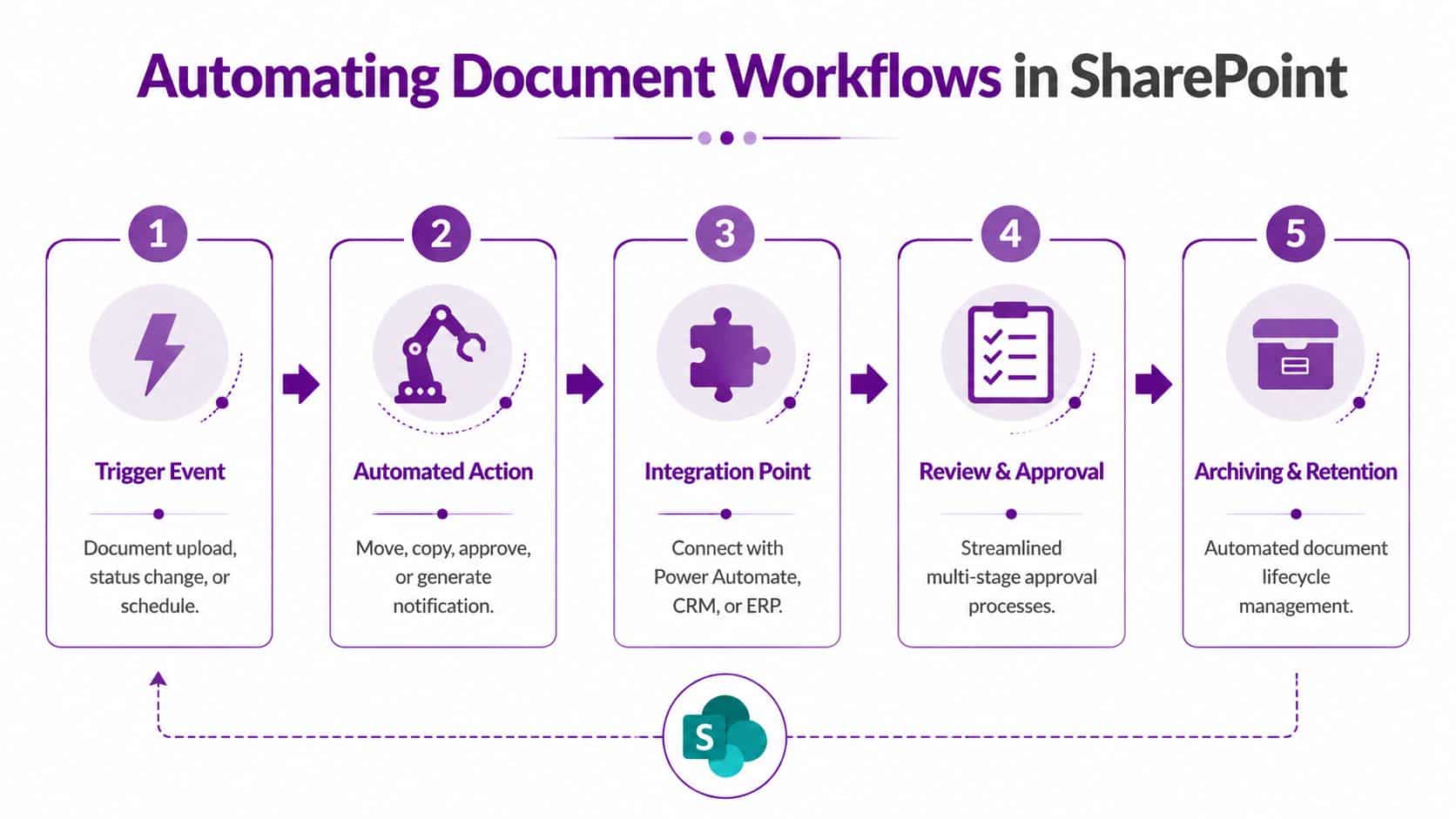
A good SharePoint DMS should do more than hold files. It should move documents through the right review, approval and handover steps without staff relying on memory, inbox chasing or side conversations in Teams.
For many UK SMBs, this is the stage where SharePoint starts affecting day-to-day operations. A policy gets reviewed on time. A contract owner receives a reminder before renewal. A manager approves a document from Teams, and the final version stays controlled in SharePoint rather than disappearing into email attachments.
Know what each Microsoft 365 tool is for
Automation works best when each Microsoft 365 tool has a clear job.
- SharePoint stores controlled business documents, along with metadata, version history and approval status.
- OneDrive is for personal working files and early drafts that do not yet belong in a shared process.
- Teams gives staff a practical front end for conversations, meetings and document collaboration.
- Power Automate handles the repeatable actions, such as alerts, approvals, routing and record updates.
That distinction matters. If staff treat every tool as a general file dump, workflows become harder to manage and harder to trust.
Start with one process that causes regular friction
The best first automation is usually not the most ambitious one.
https://www.f1group.com/how-to-use-sharepoint-for-document-management/

