Copilot: A Business Guide to Using Copilot in Word
Imagine having an expert editor and research assistant sitting right beside you, built directly into Microsoft Word. That's the best way to think about Copilot in Word. It’s an AI partner that understands your plain English commands to draft documents, summarise lengthy reports, or instantly reformat text. It essentially acts as your co-creator, helping you get your ideas onto the page faster and more effectively.
What Is Copilot and How Does It Work in Word

Forget thinking of Copilot as just a souped-up spellchecker. It’s a powerful assistant woven directly into the familiar Microsoft Word interface you use every day. The dreaded blank page becomes a thing of the past. Now, you can simply give Copilot an instruction, and it will generate a solid first draft for you to work from.
You could ask it to, 'Draft a three-paragraph project proposal based on my meeting notes,' or 'Summarise this 10-page report into five key bullet points.' For businesses across the East Midlands, from Lincoln to Nottingham, this translates to less time bogged down in routine writing and more time dedicated to high-value strategic work. Best of all, it all happens within the secure and familiar Microsoft 365 environment.
The Technology Behind the Assistant
So, how does it all work? Copilot connects to large language models (LLMs), a very sophisticated form of artificial intelligence. It takes your requests—what we call 'prompts'—and uses the context of your current document, alongside its vast knowledge base, to generate surprisingly relevant and useful text.
But it’s not just about creating new content from scratch. Copilot can also be your editing partner:
- Rewrite and edit: Highlight a paragraph and ask Copilot to make it more concise, switch the tone to be more formal, or just rephrase it for better clarity.
- Summarise long documents: Need the gist of a long report quickly? Copilot can pull out the key takeaways in seconds, saving you from reading every single word.
- Generate ideas: If you're stuck for inspiration, you can ask Copilot to brainstorm ideas for a blog post, a marketing email, or even the outline of a business plan.
Copilot essentially acts as a bridge between your ideas and a polished final document. It handles the heavy lifting of drafting and formatting, allowing you to focus on the core message and strategy.
Real-World Efficiency Gains
The impact this technology can have is genuinely significant. A groundbreaking UK government experiment involving 20,000 civil servants put Microsoft 365 Copilot to the test and the results were impressive. Participants reported an average time saving of over 25 minutes per day, which adds up to nearly two weeks of extra time per user over a year. The study specifically called out how Copilot in Word helped with document drafting, freeing users up to focus on more strategic tasks. You can explore the full cross-government findings report here.
That level of efficiency is a huge advantage for any organisation. By automating the initial, often time-consuming, stages of document creation, teams can speed up project timelines and produce higher-quality work. If you're curious about the foundational AI behind tools like this, exploring a guide on AI translation technology offers a great insight. The same core principles that allow an AI to understand and translate languages also power its ability to draft and edit your documents in Word.
Ready to see how Copilot can transform your business productivity? Phone 0845 855 0000 today or Send us a message.
Real-World Business Uses for Copilot in Word
Let's move past the theory and look at where the rubber meets the road. The real magic of Copilot in Word shines through when you start using it for everyday business tasks. For companies across the East Midlands, this isn't some futuristic concept; it's a practical tool that can boost efficiency right now. Its main strength? Turning rough ideas into polished, professional documents in a fraction of the time.
This is about more than just speed, though. It's about getting to a higher quality result with far less grunt work. Imagine your team spending less time bogged down in the mechanics of writing and formatting, and more time on the things that actually drive the business forward—like strategy, client relationships, and growth. That's what Copilot really brings to the table.
Speed Up Proposal and Report Writing
We’ve all been there. Drafting formal documents like proposals, reports, and project plans can be a real time-sink. Copilot transforms this slog into a quick, interactive process. All you need to do is provide the raw materials—a few bullet points, some meeting notes, or even just a simple idea—and Copilot will build out the entire structure for you.
For instance, a business development manager in Nottingham could fire up Word and give Copilot a prompt like this:
"Draft a formal business proposal for a new client based on these notes: Client needs a new website. Key features: e-commerce, mobile responsive, SEO-optimised. Project timeline is 12 weeks. Include sections for scope, deliverables, timeline, and cost breakdown."
In a matter of seconds, Copilot serves up a well-structured proposal, complete with professional language and all the right sections. The manager can then jump in to refine the details and add their strategic touch, saving hours of initial drafting time. They get to focus on winning the business, not wrestling with an empty page.
Turn Meeting Notes into Action Plans
Meetings are a necessary part of business, but the follow-up admin can be a major drag on productivity. Manually typing up minutes and pulling out action items is nobody's favourite job. With Copilot, you can make this entire workflow practically painless.
Picture a project manager in Leicester who has just wrapped up a project kick-off. They can simply paste their rough, shorthand notes into Word and tell Copilot:
- Prompt: "Transform these meeting minutes into a concise summary. Then, create a table of action items with columns for 'Task', 'Owner', and 'Deadline'."
- Result: Copilot will instantly produce a clean summary of the meeting’s key decisions alongside a perfectly formatted table listing every task, who’s responsible, and its due date.
This doesn't just save time; it brings a new level of clarity and accountability to the team. Everyone walks away knowing exactly what's next, which dramatically cuts down on missed deadlines and crossed wires.
Improve Everyday Communications and Content
The practical uses for Copilot in Word don't stop there. They extend to almost every form of business communication you can think of. Whether you're crafting marketing copy or trying to simplify internal policies, its ability to edit, rewrite, and brainstorm is a massive help.
Here are a few more scenarios where it proves its worth:
- Creating Job Descriptions: An HR manager in Lincoln can provide a list of key skills and responsibilities and ask Copilot to, "Write a professional and engaging job description for a Senior Marketing Executive, using an inclusive and welcoming tone."
- Developing Marketing Content: A small business owner could ask, "Generate five ideas for a blog post about the benefits of sustainable manufacturing," and then have Copilot draft an outline for the best one.
- Standardising Internal Documents: You can feed Copilot an existing company policy and ask it to, "Rewrite this document to be clearer and more concise for all employees," ensuring everyone in the organisation is on the same page.
The value of using Copilot in Word isn't just anecdotal. A major cross-government trial in the UK found that 25% of participants used it daily and 43% used it weekly, with a major focus on document drafting. While Teams saw more frequent use overall, Word emerged as a reliable workhorse for weekly tasks across many different roles, proving its staying power for sustained productivity. You can dive deeper into these findings in the official UK government report.
By weaving these capabilities into your daily work, your team can start getting more done with a lot less friction.
Ready to explore how Copilot can specifically benefit your business? Phone 0845 855 0000 today or Send us a message.
Getting Your Business Ready for Copilot
Bringing Microsoft 365 Copilot into your business takes a little bit of planning, but it's a pretty straightforward process once you know the steps. It's not a separate piece of software you buy off the shelf; think of it as a powerful upgrade for your existing Microsoft 365 subscription. This means you need to have a qualifying base licence already in place.
This approach is smart because it ensures Copilot slots directly into the apps your team already knows and uses every day, like Word, Excel, and Teams. For your business, it means you're enhancing a familiar system, not trying to force everyone to learn something completely new.
Sorting Out the Licensing
Before you can get started, your organisation needs to be on one of a specific set of Microsoft 365 plans. This base plan is the foundation that unlocks all the AI assistant’s features.
The main plans that support the Copilot add-on are:
- Microsoft 365 Business Standard
- Microsoft 365 Business Premium
- Microsoft 365 E3 and E5
- Office 365 E3 and E5
If your business in Leicester or Lincoln is already using one of these, you're all set to add Copilot. If not, you’ll need to look at upgrading your subscription to one of these qualifying plans before you can roll it out.
To make this clearer, here’s a quick summary of the prerequisites and current UK pricing.
Microsoft 365 Copilot Prerequisites and UK Pricing
This table lays out the essential base licences needed to add Microsoft 365 Copilot and its current cost in the UK.
Requirement
Details
Applicable Plans
Base Licence
A qualifying Microsoft 365 or Office 365 subscription is required for each user.
Microsoft 365 Business Standard, Business Premium, E3, E5; Office 365 E3, E5
Add-on Licence
Copilot is an add-on licence assigned to individual users.
N/A
UK Pricing
Billed per user, per month (typically on an annual commitment).
£24.70 per user, per month
As you can see, the investment for Copilot is clear and consistent. That £24.70 per user, per month fee is on top of what you already pay for your base Microsoft 365 plan.
It’s tempting to see this as just another software cost, but it's much better to view it as an investment in your team's efficiency. The amount of time Copilot in Word can save on drafting proposals, summarising lengthy reports, and creating project plans can deliver a serious return on that monthly outlay.
This quick visual shows just a few ways Copilot can be put to work on common business documents.
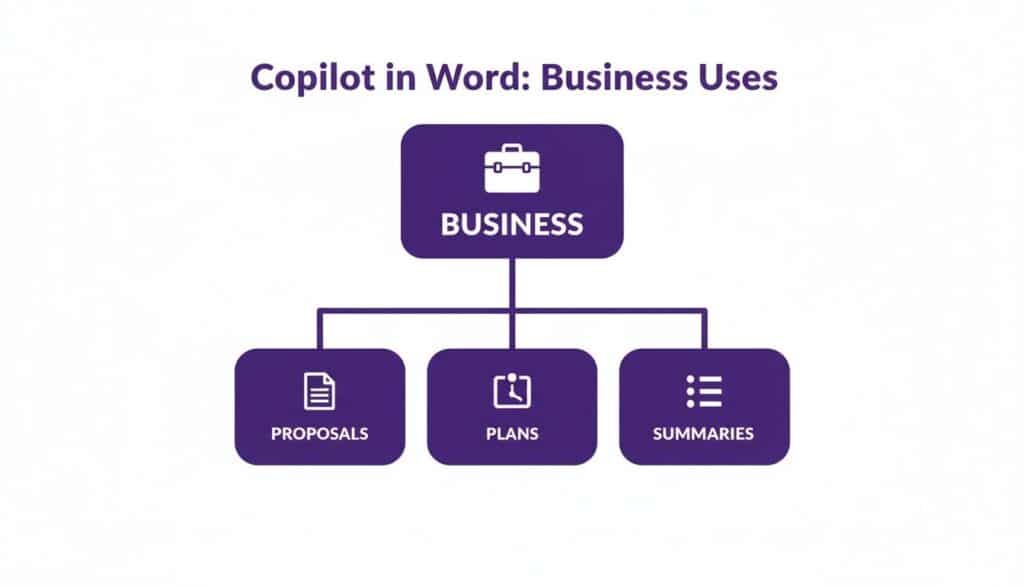
It really highlights how Copilot can smooth out those major business workflows—from kicking off a proposal to generating a final summary—all without leaving the document you're working on.
Your Technical Prep Roadmap
Once you've sorted the licences, your IT team will need to get the technical environment ready to make sure the rollout is smooth and secure. This is mostly handled in the Microsoft 365 Admin Centre, and getting these steps right is vital for a successful launch.
Here’s a simple roadmap to follow:
- Assign User Licences: After you buy the Copilot add-on licences, you have to assign them to individual users or groups in the Admin Centre. A user won't see any Copilot features in Word or other apps until a licence is linked to their account.
- Check Data Permissions: This is a big one. Copilot works within your existing security framework, meaning it can only access information that a user already has permission to see. Before you roll it out widely, it's a great idea to review your file and SharePoint permissions to make sure they're set up correctly. This prevents any accidental data exposure.
- Configure Data Governance Policies: Make sure your data sensitivity labels and retention policies are up to date. Copilot respects these classifications, which helps you stay compliant and protect confidential information as your team starts using AI to create and work with company data.
By following these prep steps, you can deploy Copilot with confidence, knowing the right people have access and your data is secure from day one. You can dive deeper into the broader benefits by reading our expert insights on Microsoft AI Copilot.
Mastering Copilot with Effective Prompts
The real secret to getting the most out of Copilot in Word isn't just knowing it's there; it's learning how to talk to it properly. The quality of what you get out is directly linked to the quality of what you put in. Think of it like giving instructions to a new team member – the clearer and more detailed your request, the better and more relevant the result will be.

Learning how to "ask" the right way is what separates generic, basic text from highly specific, valuable content that saves you a huge amount of time. This skill, often called specialised prompt engineering, is what truly unlocks Copilot's power. It’s the difference between asking "write about sales" and "analyse the attached Q3 sales data and draft a three-paragraph summary highlighting key wins for the leadership team".
Prompts for Drafting and Creation
This is where most people start. Instead of staring at a blank page, you can give Copilot a simple instruction and get a solid first draft in seconds. The trick is to provide context, be clear about the format you want, and mention the intended audience or tone.
Here are a few examples your team can try straight away:
- Beginner: "Write a formal letter to a client about a project delay. Mention that the new completion date is two weeks later and apologise for the inconvenience."
- Intermediate: "Draft a one-page project brief for a new website launch. Include sections for Objectives, Target Audience, Key Features, and a proposed Timeline."
- Advanced: "Create a detailed marketing plan based on the attached meeting notes. Structure it with an Executive Summary, a SWOT analysis, and three distinct campaign ideas with budget allocations."
Prompts for Summarisation and Analysis
One of Copilot's biggest time-savers is its ability to chew through large documents and spit out the important bits. This is brilliant for getting up to speed on long reports or email chains without having to read every single word.
To get the best results, be specific. Tell Copilot what to focus on and how you want the summary presented.
"Tell Copilot what to look for and how to present it. For instance, asking it to 'identify key trends' or 'extract action items' will yield far more useful results than a generic 'summarise this document'."
Consider these practical examples:
- Simple Summary: "Summarise this 10-page report into five key bullet points."
- Targeted Analysis: "Analyse this attached sales report, identify the top three performing products, and list the key reasons for their success."
- Action-Oriented Extraction: "Review these meeting minutes and create a table of all action items, assigning owners and deadlines based on the conversation."
The efficiency gains here are massive. A recent UK government study tracking 20,000 workers found that Microsoft 365 Copilot in Word led to average daily time savings of 26 minutes. That freed up the equivalent of 1,130 full-time civil servant years for more important work. A staggering 80% of users in the study refused to give up Copilot after the trial, which just shows its immediate impact.
Prompts for Editing and Formatting
Copilot is more than just a writer; it's also an exceptional editor. It can help you refine your writing, adjust the tone to suit the audience, and make sure your document looks polished and professional. This is a great way to maintain consistency across all your business communications.
Try these prompts to improve existing content:
- Tone Adjustment: "Rewrite this paragraph to have a more professional and formal tone."
- Conciseness Check: "Make this section more concise without losing the core message."
- Formatting Request: "Turn this list of features into a two-column table with 'Feature' and 'Benefit' as the headers."
- Clarity Improvement: "Rephrase these sentences to be clearer and easier for a non-technical audience to understand."
By building a library of effective prompts tailored to your business's common tasks—whether you're in Derby or Grimsby—you can ensure your entire team gets real value from your investment in Copilot in Word. It gives them the power to work faster, produce higher-quality documents, and focus on what truly matters.
Keeping Your Data Safe with Copilot
Bringing any new tool into your business, especially AI, naturally raises a few questions. And for most business leaders, the big one is always about security. How can we be sure our sensitive client information or internal commercial data is safe? Thankfully, Microsoft built Copilot in Word with business security as a foundational principle, not an afterthought.

Here's the key thing to understand: Copilot works entirely within your existing Microsoft 365 environment. It isn’t some separate application operating in a bubble. It simply plugs into the system you already have, inheriting all the security policies, user permissions, and data sensitivity labels you’ve carefully put in place.
Think of your Microsoft 365 setup as a secure building with different levels of keycard access. When you give someone Copilot, you’re not handing them a master key. Instead, Copilot uses the exact same keycard as the person using it. It can only open the doors and access the files that the user already has permission to see.
Your Data Stays Your Data
One of the biggest worries surrounding AI is what happens to the data you feed into it. It’s a valid concern. The last thing you want is for your confidential financial reports or top-secret strategic plans to end up training a public AI model, where they could be exposed.
Microsoft has drawn a very clear line in the sand on this. Your business data is your business data. It is never used to train the public large language models (LLMs) that power Copilot. https://www.f1group.com/copilot-in-word/


